AT Smart Robot Instructions: Charge, Gesture & Replay
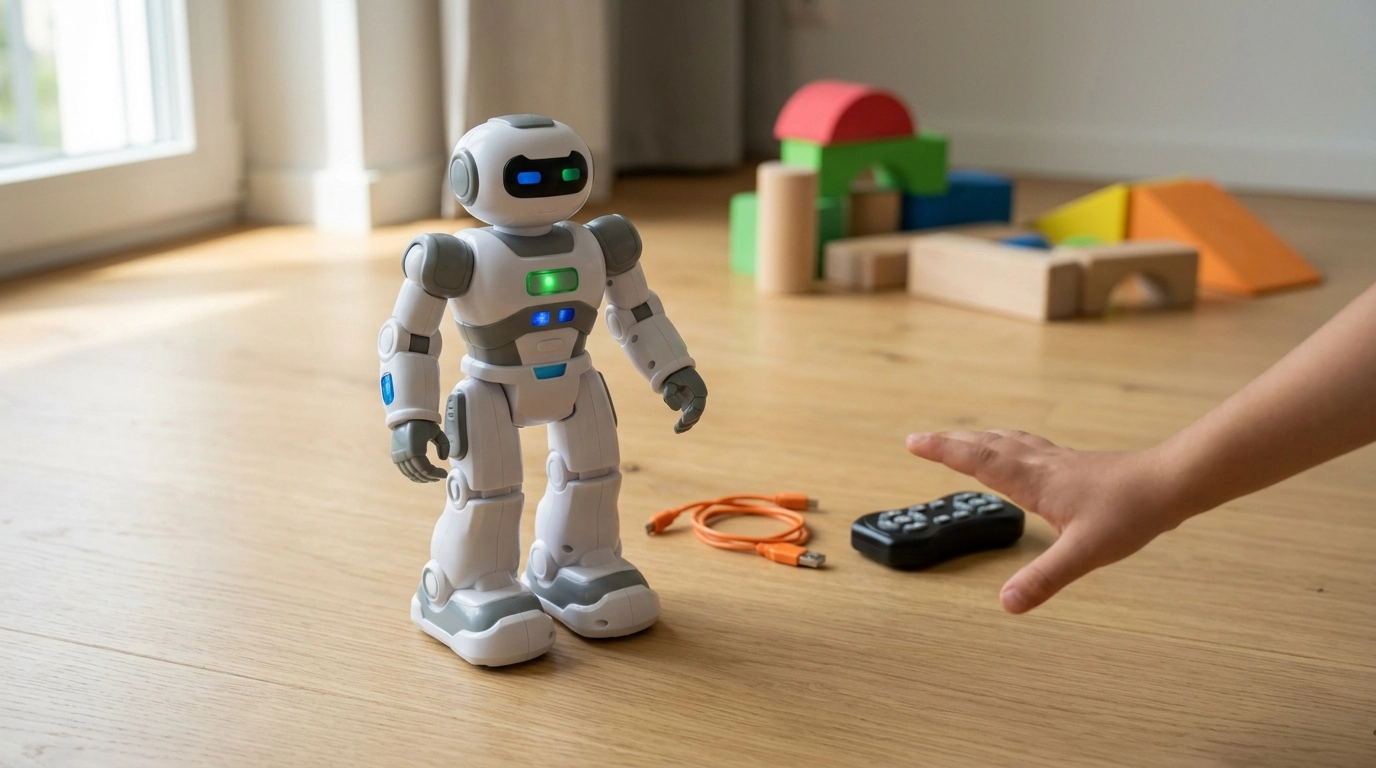
What are the instructions for using the AT Smart robot?
The AT Smart robot is designed to be quick to set up and fun to control with simple gestures and button commands. Start by fully charging the robot with the included USB cable until the indicator shows it’s ready. Power the robot on using the switch on the body, then place it on a flat surface so its sensors can respond accurately.
Next, choose how you want to play: gesture control, remote/button control (if included with your model), or built-in demo modes. For gesture control, hold your hand a few inches in front of the robot’s sensor area and use steady, deliberate motions—quick or shaky movements can cause missed inputs. If your unit includes a “program/replay” feature, record a short sequence of actions and then trigger replay so the robot repeats what you taught it.
For best results, use the robot indoors on smooth flooring, keep obstacles out of its path, and avoid direct sunlight on the sensors. If the robot isn’t responding, turn it off, wait a few seconds, then restart; also confirm it has enough charge. For model-specific steps and feature details (gesture modes, programmable replay, charging notes), follow the full guide here: AT Smart Robot Instructions & Guide.
FAQ
What are the commands for the AT Smart robot?
Common commands include moving forward/back, turning left/right, stopping, and activating demo or dance modes, depending on the model. Gesture modes typically rely on holding your hand near the sensor and using clear directional motions.
How do I use the intelligent robot toy?
Charge it first, switch it on, and select a control mode (gesture, remote/buttons, or demo). Use it on a flat surface and keep the sensor area clear for more reliable responses.
What are the instructions for using the Kids Smart Watch?
Charge the watch, power it on, set the language/time, and pair it with its companion app if required. Insert a compatible SIM only if the model supports calling or data features.














Leave a comment