Add Gesture Control: Phone Navigation or RC Robot Setup
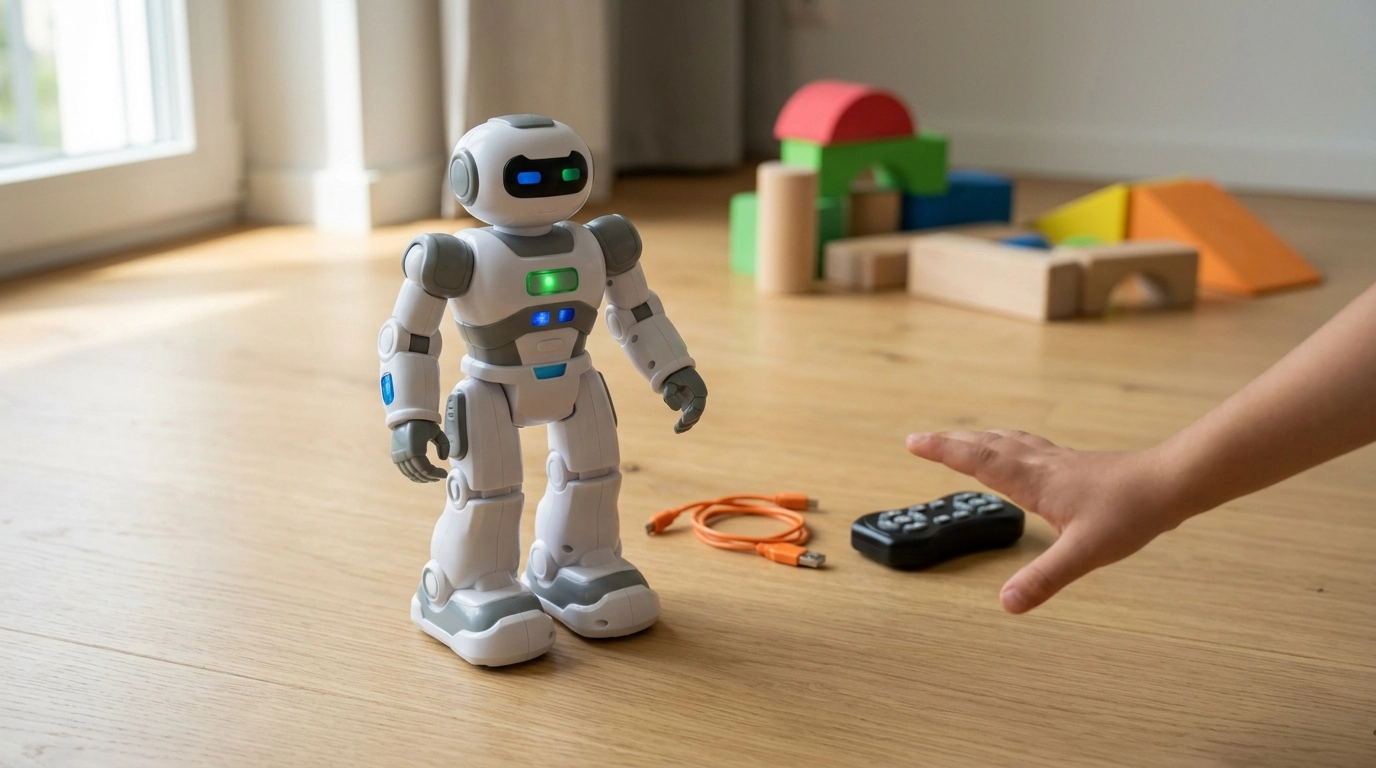
How to add gesture control?
“Gesture control” can mean two different things: enabling touchless hand motions on a device (like a smart RC robot) or switching your phone to gesture navigation (swipe controls instead of buttons). To add gesture control smoothly, start by confirming what device you’re setting up and what kind of gestures it supports.
Add gesture control to a smart RC robot (hand-motion control)
Most gesture-controlled robots use either a dedicated gesture sensor, a handheld controller with motion sensing, or camera-based tracking. First, fully charge the robot, power it on, and select the correct mode (often labeled “Gesture,” “Sensor,” or “Motion”). Then calibrate: place the robot on a flat surface, keep your hand within the recommended distance, and use clear, single-direction motions (left, right, forward, back) until the robot reliably responds.
If your model supports recording and replaying moves, set up gestures first, then save routines after you’ve confirmed the robot recognizes your hand signals consistently. For model-specific steps and tips that match a gesture-enabled programmable robot, use this guide: https://emprene.com/guide-gesture-smart-rc-robot-programmable-replay-usb-charging/.
Add gesture control to a phone (gesture navigation)
On phones, “gesture control” usually means replacing the navigation buttons with swipes. After turning it on, practice the core gestures: swipe up to go Home, swipe and hold for App Switcher, and swipe from the left or right edge to go Back (Android patterns vary by brand).
Troubleshooting quick fixes
If gestures don’t work, check for these common blockers: wrong mode selected, low battery, obstructions over sensors/cameras, lighting issues (for camera-based gestures), or a phone case/screen protector interfering with edge swipes. Recalibrate or restart the device after changing settings.
FAQ
How do I turn on gesture controls?
Open your device’s Settings and look for “Gestures,” “Motions,” or “Navigation,” then enable the available gesture option. On gesture-controlled robots, switch to the “Gesture/Motion” mode and follow any calibration step.
How do I turn on gesture control on my iPhone?
iPhones use gestures by default on models without a Home button; make sure you’re using swipe up for Home and swipe from the edge for Back (in supported apps). For accessibility-based gesture features, go to Settings > Accessibility to enable options like AssistiveTouch.
How do I add gestures to my Android phone?
Go to Settings > System (or Display) > Gestures or Navigation system, then select “Gesture navigation.” After enabling it, use the on-screen tutorial to learn the swipe areas and sensitivity options.















Leave a comment